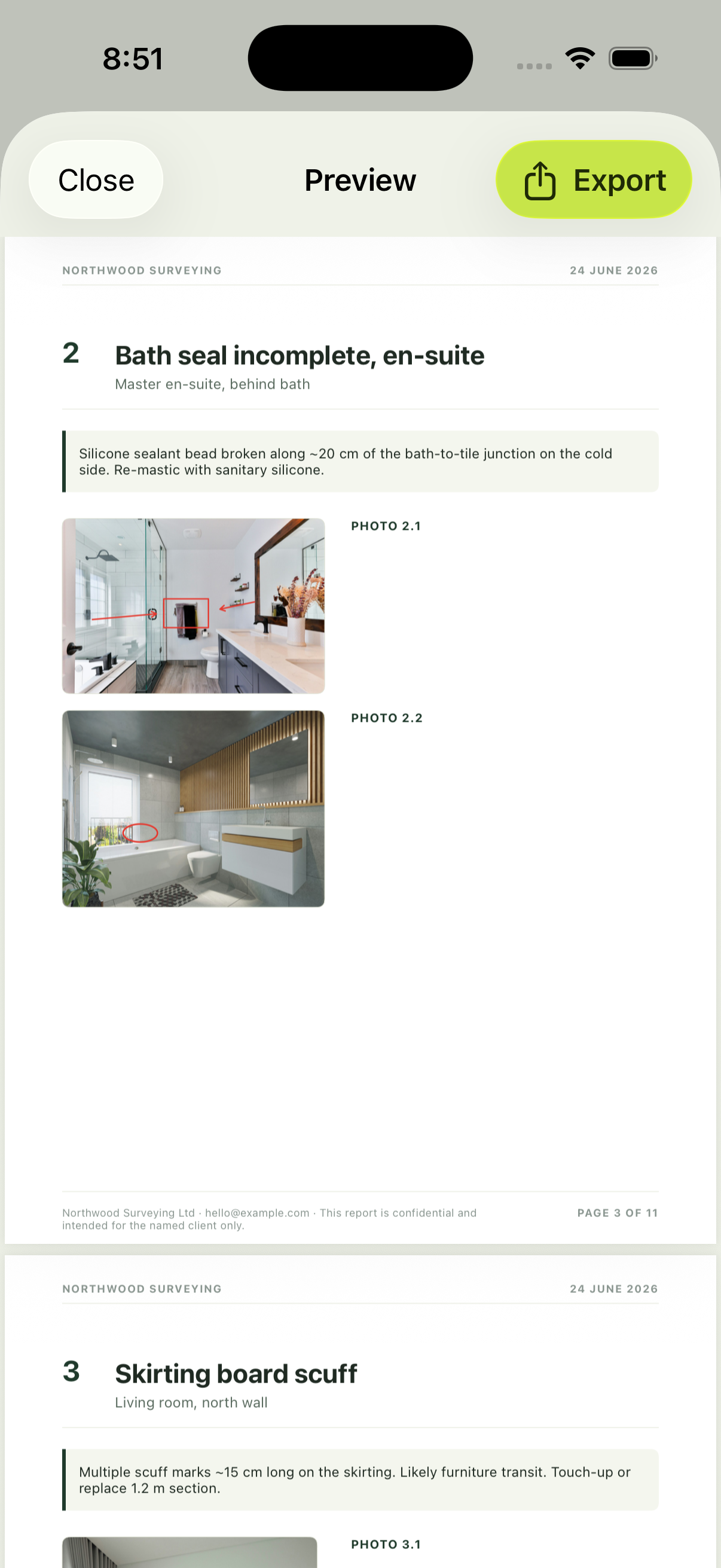
The report is what the client actually sees. It's the bit that makes you look like a professional outfit or an afternoon's guesswork. SnagDesk turns the list you built on the walk into a branded PDF in seconds, so the thing that leaves your phone is something you're happy to put your name on.
One tap from list to report
When the walk is done, you don't retype anything. Every snag you logged, with its photos, markup, location and notes, is pulled straight into a multi-page report. There's no exporting to a laptop, no wrestling with a template, and no evening spent rebuilding the list you already made on site.
Branded as your company, not ours
Set your company name, add your logo, add a prepared-by signature and write the footer text once in Settings, and every report carries them. The client sees your brand on every page, not a watermark for the app that made it. For snagging inspectors and surveyors, that consistency is part of looking credible on the first job and every one after it.
A photo of every snag, in its place
Each defect appears with its marked-up photo, its location and its description, numbered so it's easy to reference on site. When a builder is closing out the list, they can see exactly what and where, which cuts the back and forth to a fraction of what a plain spreadsheet causes.
Send it before you leave site
Because the report is generated on your iPhone, you can produce and send it from the doorway. Export the PDF and email it with your own apps while you're still on the drive. The client gets a finished report the same day, not three days later when half the snags have already been argued over.